
Matinee guide
How to transfer videos to Apple TV from a browser
Matinee copies your video files straight to your Apple TV over your home network. Send movies and shows from a computer, iPhone, or iPad, then watch them in a library with posters and seasons. No separate media server or account is needed.
Get Matinee for Apple TVWhat you need
- An Apple TV running tvOS 18 or later, with Matinee installed.
- A computer, iPhone, or iPad with a browser and access to your video files.
- Both devices on the same home network, with room on the Apple TV for the videos.
Matinee is free for up to 10 titles. Each movie or show counts as one title, however many episodes it has. Matinee Pro unlocks unlimited titles with a one-time purchase.
Send videos from a computer in four steps
Open Matinee on Apple TV
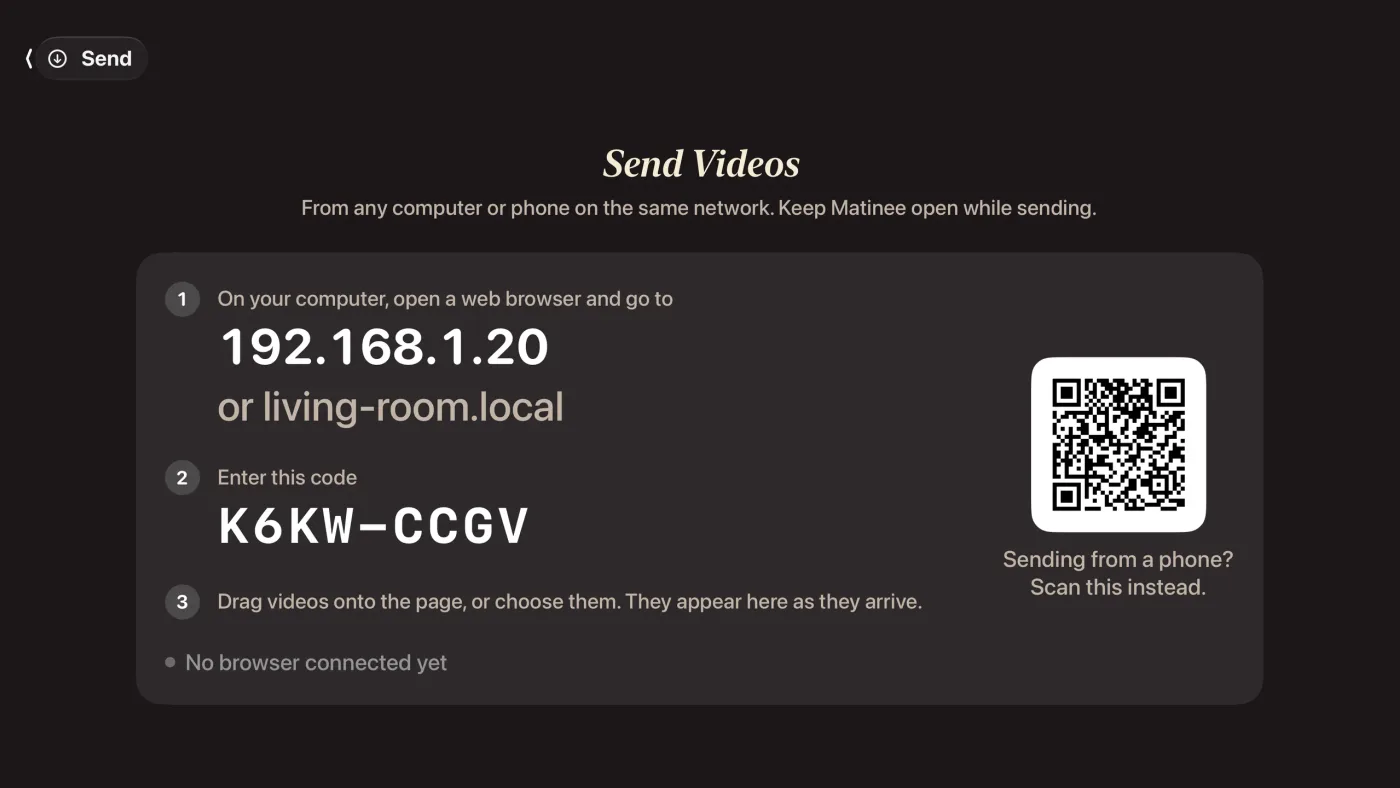
On first launch, Matinee shows the upload address, pairing code, and QR code in the empty library. If you already have videos, choose Send in the sidebar. Allow local-network access if tvOS asks.
Connect your browser
On your computer, open the exact address shown on the TV, then enter its eight-character pairing code. The browser stays paired for future visits. This address belongs to your Apple TV on your home network.
Add your videos and subtitles
Drag files or whole folders onto the page, or use Choose videos or Choose folder. Send a whole show folder to preserve its name for episode matching. Add separate subtitle files with the videos. Files already on the TV are skipped.
Keep both devices awake, then watch
Leave the browser page and Matinee open while the files transfer. When a file finishes, the browser shows On your TV. Find the video in Matinee’s library and press play.
Transfer from an iPhone or iPad
Scan the TV’s QR code with your camera to open the paired upload page; you do not need to enter a code. Tap Choose videos and select files from Files or Photos. Files sends the original; Photos may send a smaller, re-encoded copy. iPhone and iPad browsers do not support folder selection or drag and drop here. Keep your device unlocked while sending.
Send MKV, MP4, and subtitle files
Matinee plays MKV, MP4, MOV, AVI, WebM, TS, MPEG, and more with VLC’s engine. Subtitles can be embedded or supplied as SRT, ASS, SSA, or VTT files. Include the movie’s year and season/episode numbers such as S01E02 in file names to help match posters and shows. For a video named Movie.mkv, name its subtitle file Movie.srt or Movie.en.srt so Matinee can pair them.
If a transfer stops or the page will not open
The browser cannot reach the TV
Check that both devices are on the same network, that local-network access is allowed, and that Matinee is open. Use the exact address currently shown on the TV.
The TV app closed or went to sleep
Reopen Matinee and keep the sending device awake. Transfers wait while the TV app is closed or asleep.
You reloaded or closed the browser
Reopen the upload page and choose the same file again. Matinee resumes the unfinished upload from where it stopped.
Storage is full or the free-title limit is reached
Use Manage on the TV to clear watched videos or delete titles. If you need more titles in the library, unlock Matinee Pro on Apple TV.
Keep your original video files
Matinee stores copies on the Apple TV. Keep the originals on your computer or drive: tvOS may remove stored videos to free space, and you can send them again. Matinee for Mac has a separate library; adding folders on Mac does not transfer them to Apple TV.