

Getting started
Matinee plays the movies, shows, and home videos you already have. You send them from a web browser on any phone or computer in the house, and they're stored on your Apple TV, where Matinee files them into a library with posters, seasons, and a place to pick up where you left off. There's no account, no server to run, and nothing to install on your computer.
Matinee needs an Apple TV with tvOS 18 or later, on the same home network as the phone or computer you send from.
The first time
- Open Matinee. With nothing in the library yet, it shows Send videos from your computer, with an address, a code, and a QR code.
- Follow the steps on the screen, described in Sending videos. Once the first video arrives, the sidebar appears and the library takes over.
If tvOS asks whether Matinee may find and connect to devices on your local network, allow it. Matinee runs a small web server on your Apple TV, and that's how your phone or computer reaches it.
Sending videos
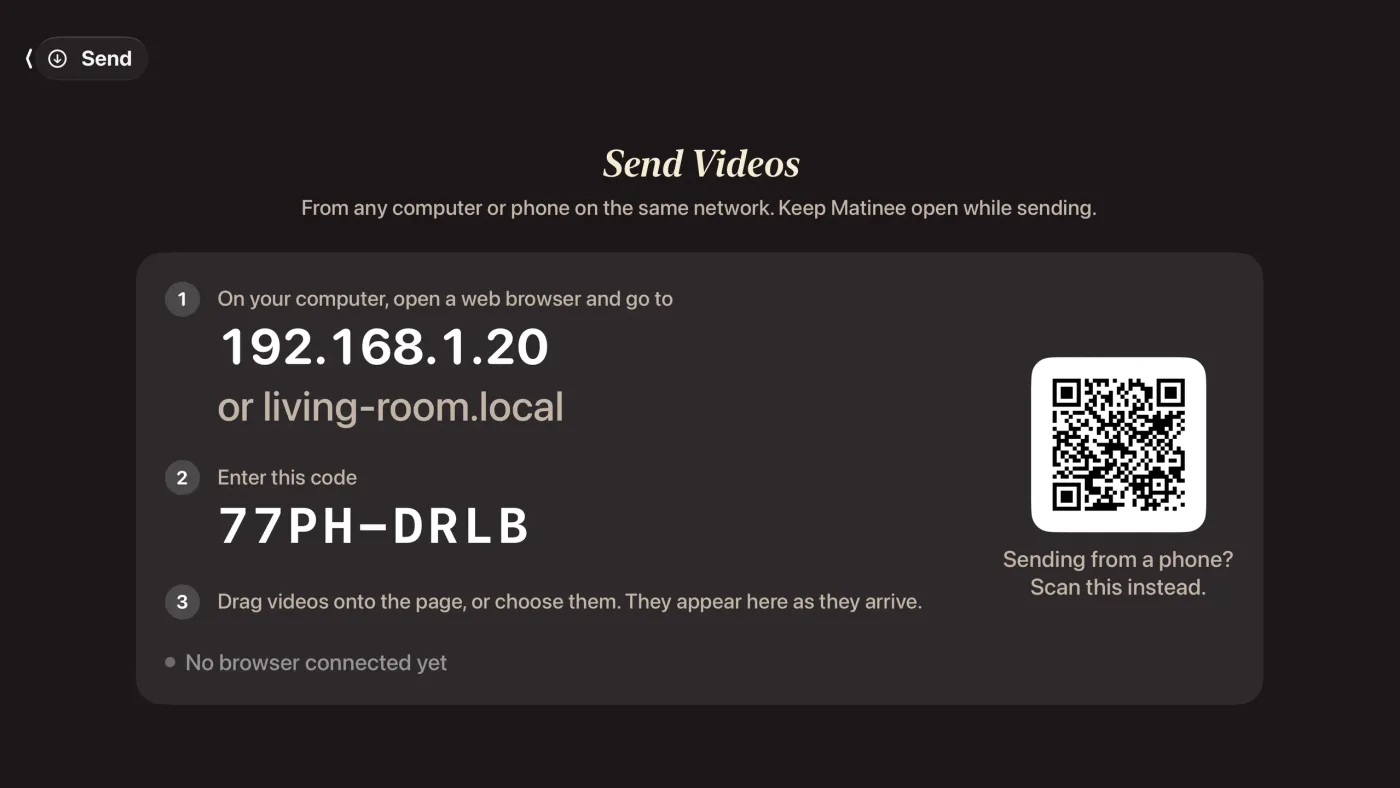
Choose Send in the sidebar. The TV shows what you need to connect.
From a computer
- Open a web browser and go to the address on the TV, such as
192.168.1.20, or the.localname below it. Type it exactly as shown. - Enter the code from the TV. It's eight letters and numbers, like
77PH-DRLB; the page fills in the dash and sends it when you type the last character. You only do this once per browser: it stays paired. - Drag videos or whole folders onto the page, or click Choose videos or Choose folder. Once you're paired, you can drop files anywhere in the window.
On the TV, the first two steps turn into checkmarks when a browser connects, and a line names it, such as Connected: Safari on Mac. Videos appear under Receiving as they arrive, and a message on the TV says Added and the title when each one is ready.
From an iPhone or iPad
Scan the QR code on the TV with your phone's camera. It opens the page already paired, with no code to type. Tap Choose videos and pick from Files or Photos.
For large videos, pick from Files rather than Photos. Photos may send a smaller, re-encoded copy instead of the original.
iPhone and iPad browsers can't drop files or pick folders, so shows can't take their names from folders (see How videos are named), and subtitles in a separate Subs folder aren't paired automatically.
The queue
The page sends two files at a time, and shows each one's speed and time left. The browser tab's title shows the overall progress too, so you can keep an eye on it from another tab. Each file has Pause or Resume, and an × to cancel it; cancelling also removes the part already on the TV.
- Waiting: queued behind the files being sent.
- Waiting for the TV… or Retrying…: the TV is out of reach for the moment. The page keeps trying on its own.
- On your TV: done. Finished files collect under Sent, which Clear empties.
- Already on your TV: a file with the same name and size is already in the library, so nothing was sent.
- Paused · TV storage full and Paused · Unlock Matinee Pro on your TV: see Troubleshooting and Matinee Pro.
Matinee accepts these video files: mkv, mp4, m4v, mov, avi, wmv, flv, webm, ts, m2ts, mts, mpg, mpeg, vob, ogv, 3gp, divx, rmvb, plus anything else your browser reports as video. Other files are skipped, and the page lists them.
Keep Matinee open while sending
The web server runs only while Matinee is open on the TV. If you switch to another app or the Apple TV goes to sleep, the page says TV app closed or asleep and waits. Open Matinee again and the uploads carry on where they stopped. While files are arriving, Matinee keeps the TV's screen saver from starting.
On the sending side, keep the page open and the screen on. A phone that locks suspends the page; the upload continues when you unlock it.
Picking up an unfinished upload
If you close the page or reload it partway through a file, the part already sent stays on the TV and the file is listed under Unfinished. Choose the same file again and it continues where it stopped. To give up on it instead, click Discard. The TV clears out unfinished uploads that haven't been touched for seven days.
How videos are named
Matinee reads each file name to work out what the video is, then looks it up on TheTVDB for the poster, backdrop, synopsis, and episode details. Dots and underscores count as spaces, and the usual release tags (resolution, source, codec, and the like) are ignored.
- Episodes: a season and episode number makes it part of a show. Matinee understands
S01E02,1x02, andSeason 1 Episode 2. Anything after the number is used as the episode title. - Movies: a year helps Matinee find the right film, as in
Fog Over Ellery Lake (2024).mkv. - Shows from folders: when an episode's file name is only
S01E02.mkv, Matinee takes the show's name from the folder you sent, skipping folders named likeSeason 2,Disc 1, orSpecials. Send the show's folder rather than its files to get this.
Videos that don't match anything go under Other Videos, or under TV Shows if they have episode numbers. They show a frame from the video, or a blank ticket with their name on it, and are marked Unmatched.
Fixing a wrong match
On the TV, open the video, choose More (the … button), then Fix Match. Matinee shows the file's original name and the other titles it found; pick the right one, or choose Remove Match to make it unmatched.
If the right title isn't listed, use the upload page, where you can type a search: open the video in the Library tab and click Fix match. Search for the title, and if you pick a show, enter which Season and Episode the file is, then Use this match.
Renaming
To give a video your own title, open it in the upload page's Library tab and click Rename. Matinee keeps your title and won't replace it with a matched one. Renaming is only on the upload page; the TV has no keyboard for it.
Finding your way around
The sidebar has Home; a Library with All Videos, Movies, TV Shows, and Other Videos; and Send, Manage, and Settings. While videos are arriving, a small indicator in the corner shows how far along they are.
Home
The top of Home features one video: the one you were last watching, or else the next episode of your newest show, or else something recently added. Resume or Play starts it, and More Info opens its page. Below are shelves for Continue Watching, Recently Added (once you have a dozen or so videos), Movies, TV Shows, and Other Videos. A show's poster carries the number of episodes you haven't watched.
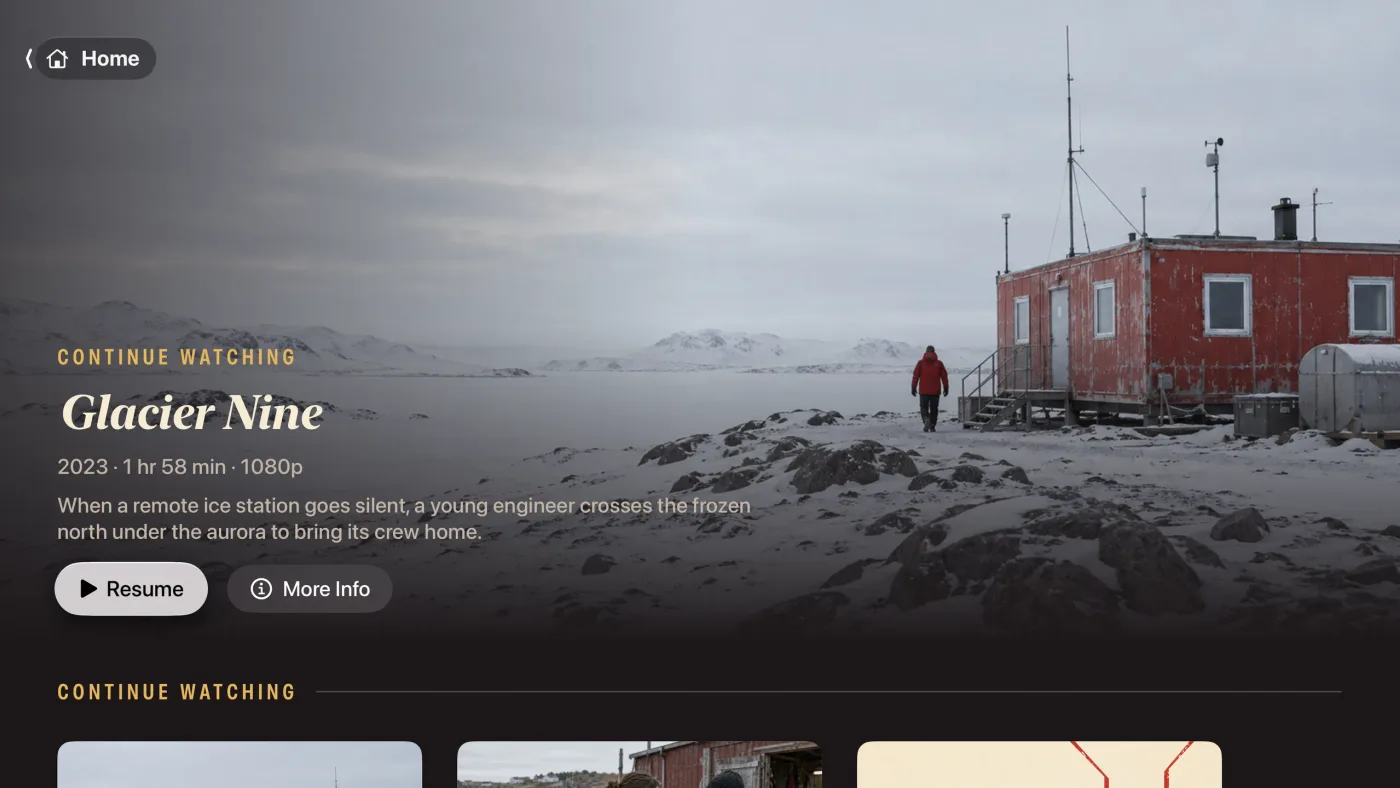
Hold down the clickpad on any poster for a menu: Play, Mark as Watched, Show Info, and Delete for a video, or Mark Show as Watched and Delete Show for a show.
The library
All Videos, Movies, TV Shows, and Other Videos each show a grid of posters. Unwatched hides what you've finished, and the sort menu orders by Recently Added or Title. Watched videos have a check on their poster, and ones you've started have a progress bar.
Movie and video pages
A video's page shows its year, running time, and genres, and the file's details: resolution, video and audio format, sound channels, and size. Play becomes Resume from and the time once you've started, with Start Over beside it. The checkmark button marks it watched or unwatched, and More has Fix Match and Delete.
Show pages
A show's page leads with a button for the episode to watch next, such as Resume S1, E3: the one you're partway through, or else the first unwatched one after the last you finished. When a show has more than one season, buttons switch between them.
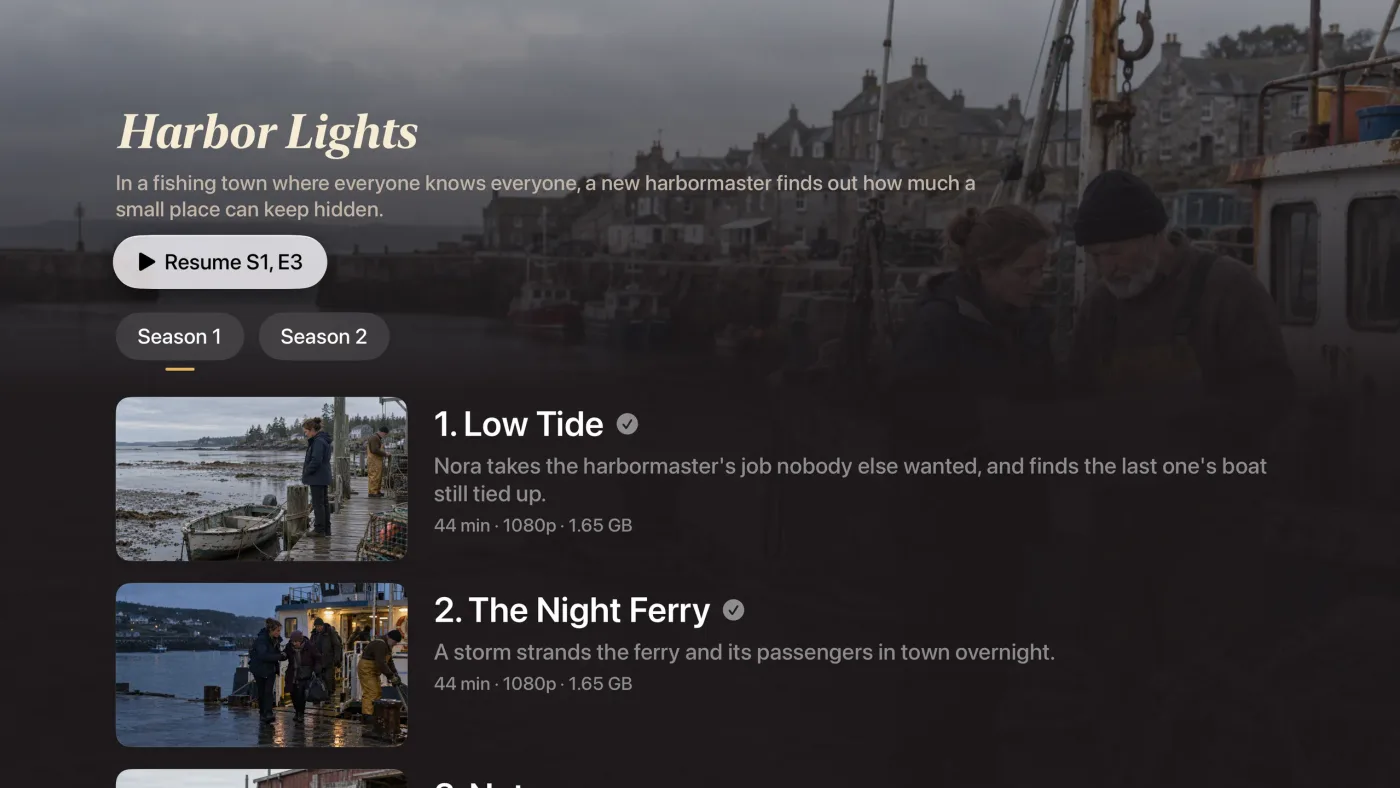
Episodes that have aired but aren't on your Apple TV are listed dimmed, marked Not on this Apple TV, so you can see what's missing. Choosing one tells you where to send it from.
Watching
Matinee plays videos with VLC's engine, so it handles the files other players turn away, including MKV and AVI. If a file can't be played, Matinee says This file couldn't be played.
The Siri Remote
| Do this | To |
|---|---|
| Play/Pause button | Play or pause. |
| Click the clickpad | Play or pause. While scrubbing, jump to the point you've scrubbed to. |
| Click left or right | Skip back or forward 10 seconds. On the first Siri Remote, click the left or right edge of the touch surface. |
| Rest a finger on the clickpad | Show the timeline. |
| Press up | Show the controls. |
| Press down, or swipe down | Open the panel with Info, Audio, and Subtitles. |
| Swipe left or right while paused | Scrub through the video. |
| Menu or Back | Close whatever is open, one step at a time, then leave the player. |
Scrubbing, previews, and chapters
Pause, then swipe left or right on the clickpad to move through the video; a full swipe across covers an eighth of it. A frame from the video previews where you'll land, with how far you've moved, and clicking jumps there. If the file has chapters, they're marked on the timeline and the current chapter's name is shown.
Audio and subtitles
Press down, or swipe down, to open the panel, then choose Audio or Subtitles. Tracks are listed with their language and format, such as English · AC-3 · 5.1. Info shows the video's details.
Matinee remembers the subtitles you choose for each video, including turning them off, and uses that choice next time. Audio isn't remembered per video: each time, Matinee picks the first track in your Audio Language from Settings, or the file's default. Without a choice of your own, the Subtitles setting decides which subtitles show.
Resuming and watched
Matinee saves your place as you watch, and picks up from there next time. Starting a video you've watched more than 30 seconds of from a menu or the show page asks whether to Resume from where you were or Start Over. A video counts as watched once you've seen 90% of it.
Up Next
Twenty seconds before the end of an episode, Matinee offers the next one on your Apple TV. With Play Next Episode Automatically on, it counts down and plays it; otherwise the player closes at the end. Click to play it straight away, or press Menu to dismiss it.
Subtitle files
Besides the subtitles inside a video file, Matinee plays separate .srt, .ass, .ssa, and .vtt files of up to 10 MB. Send them together with the video, or on their own later.
A subtitle file is paired with a video by name: it has to start with the video's file name. For Movie.mkv, these all work:
Movie.srtMovie.en.srt: EnglishMovie.en.forced.srt: English, forced (only the lines in other languages)Movie.en.sdh.srt: English, for the deaf and hard of hearing
Languages can be written as a code (en, eng, pt-BR) or a name (English). A subtitle file with no matching video is skipped, and the page says so.
When you send a folder, subtitles can also sit in a Subs or Subtitles folder. Beside a single video, everything in that folder goes with the video, whatever it's called. With several videos, as in a season, give each episode its own folder inside, named after the episode's file, such as Subs/Harbor.Lights.S01E01/English.srt; loose files in Subs aren't paired then. iPhone and iPad browsers don't send folders, so there name each subtitle file after its video.
In the player, a subtitle file shows up under Subtitles with its language. If you send one while the video is playing, it's there the next time you play it. Sending a subtitle file with the same name again replaces the old one. To remove one, open the video in the upload page's Library tab and click Remove next to it.
The library in your browser
The upload page's Library tab lists everything on your Apple TV, with a storage meter, a search box, and sorting by Recently added, Title, or Size. It's often quicker than the remote for tidying up.
Click a video for Rename, Fix match, Mark watched, and Delete, and to remove its subtitle files. Click a show to mark it all watched or delete it. Right-click, or long-press on a phone, for the same actions from the list.
Storage and Manage
Videos are stored on your Apple TV, so they use its storage. Manage shows how much: what Matinee uses, what other apps use, and what's free.
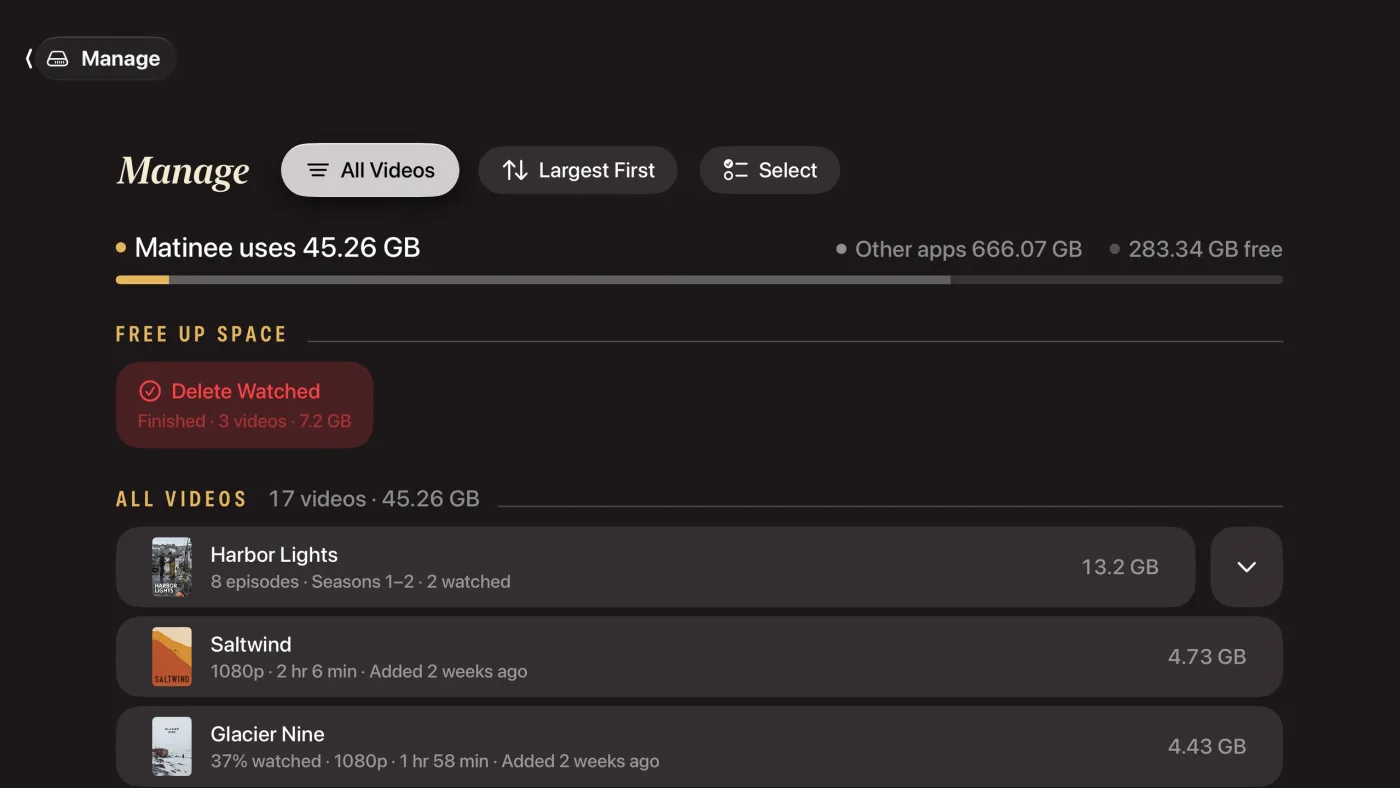
Below it, every video is listed, Largest First by default, with how much of it you've watched and when it was added. A show is one row; open it to see its episodes. Use the menus to show only Movies, TV Shows, or Other Videos, or to sort by Recently Added or Title.
Freeing up space
Under Free Up Space, each button says how many videos it covers and how much space it frees, and appears only when there's something to clear:
- Delete Watched: everything you've finished.
- Delete Untouched: videos not played in 60 days.
- Delete Duplicates: extra copies of the same video. It keeps the largest copy, and never one you're partway through.
To choose for yourself, click Select, pick videos, and click Delete.
Videos the Apple TV removed
When an Apple TV runs low on storage, tvOS can remove apps' stored files to make room, and that includes Matinee's videos. Matinee still remembers them: they're listed under Removed to Free Space, and what you'd watched is kept. Send the same file again and it comes back with its progress. If you don't want it back, Forget clears it.
Your videos live only on the Apple TV. Keep the originals on your computer or another drive, so you can send them again if they're removed.
Top Shelf
Put Matinee in the top row of the Apple TV Home Screen and its Top Shelf shows your two most recently watched videos, under Recently Watched, with how far along you are. Select one to open its page, or press Play to carry on watching.
Settings
| Setting | What it does |
|---|---|
| Address, Local Name, Code | What to type in a browser to send videos. |
| Regenerate Pairing Code | Makes a new code and unpairs every phone and computer, so each has to enter the new one. |
| Apple TV Name | The name the upload page shows, so you can tell several Apple TVs apart. Leave it empty to use the Apple TV's own name. |
| Play Next Episode Automatically | Plays the next episode at the end of the last. On at first. |
| Audio Language | The language to choose when a video has several audio tracks. File Default leaves it to the file. |
| Subtitles | Off, a language, or Automatic (the default). Automatic shows subtitles in your Apple TV's language when the audio is in another language, and otherwise only forced subtitles, the ones that translate signs and foreign dialogue. |
| Metadata Language | The language for titles, synopses, and episode names from TheTVDB. It starts out as your Apple TV's language. |
Settings also shows how many titles you have, the Matinee Pro buttons, and Licenses & Attribution.
Matinee Pro
Matinee is free for up to 10 titles, with everything working. A show counts as one title however many episodes it has, and new episodes of a show you already have always come in. Videos the Apple TV removed to free space don't count.
When you try to send an eleventh title, the TV offers Matinee Pro, a one-time purchase with no subscription that removes the limit. Uploads of new titles pause, and the upload page says Unlock Matinee Pro on your TV. Everything already on the TV stays, and you can always play it. To keep going without buying, delete something and resume the uploads.
Buy it on the TV, with Unlock for and the price on the screen that appears at the limit, or from Settings with Unlock Matinee Pro. Paused uploads carry on by themselves once it's unlocked, with no need to reload the page. If you've bought it before, on a new or reset Apple TV, choose Restore Purchases.
Troubleshooting
The page can't reach the TV
- Open Matinee on the Apple TV and leave it open. The upload page only works while it's on screen.
- Make sure the phone or computer is on the same network as the Apple TV, not a guest network or mobile data.
- Type the address exactly as the TV shows it, number or
.localname. - If the TV says Connect this Apple TV to your home network, it has no network address yet. Check its network in the Apple TV's Settings app.
- If Matinee asked to find devices on your local network and you said no, allow it in the Apple TV's Settings app.
The code doesn't work
Check it against the code on the TV, which is also in Settings. After several wrong tries the TV makes you wait before trying again. If a browser that was paired goes back to asking for a code, the code was regenerated in Settings; enter the new one.
Apple TV storage is full
Matinee won't start a file that doesn't fit in the free space, with some room to spare, and pauses the queue. Delete something in Manage or the upload page's Library, then resume the uploads.
An upload failed
Couldn't read this file. Pick it again to resume. means the browser could no longer read the file, for example because it was moved or renamed. Choose the same file again and it continues.
A video doesn't play
If Matinee says This file couldn't be played., the file may be damaged or incomplete. Try playing it on your computer, and send it again if it plays there.
Getting help
Questions, bug reports, and suggestions are welcome at info@plastaq.com. How Matinee handles your data, including what it looks up on TheTVDB, is in the privacy policy.