

Getting started
MiniMoon plays the music files you already have. It reads them where they are; nothing is imported, copied, or moved. Your albums show up the way they are tagged, so the better your tags, the better MiniMoon looks. You can fix them as you go with the built-in tag editor.
This manual describes the Mac app first. The iPhone and iPad app shares almost everything, and the iPhone and iPad section covers where it differs.
Adding your music on Mac
- Open MiniMoon. With an empty library, Home shows Library Empty. Click Open Library Settings.
- Under Library Locations, click Add Location and choose a folder of music. Add as many folders as you like, one at a time.
- MiniMoon scans the folder and everything inside it. Albums appear as they are found.
Folders on an external drive are marked with a drive icon. If the drive is disconnected, the icon turns red and a scan stops with a message asking you to reconnect it and try again. To remove a folder, click its trash button. Its music leaves MiniMoon, but the files themselves are not deleted.
Keeping the library up to date
MiniMoon watches your folders while it runs. Add, change, or delete files and the library catches up a few seconds later, and it checks again every time the app opens. You can also scan by hand from Settings › Library:
- Scan Library reads only new and changed files, and drops tracks whose files are gone.
- Full Scan re-reads every file. Use it if tags changed but MiniMoon has not noticed.
- Clear Cache clears the cover art cache, so covers are reloaded from your files.
The same pane shows Library Stats (tracks, albums, and total size) and details of the last scan.
Supported files
- Audio: MP3, AAC and ALAC (.m4a), FLAC, Opus, WAV, and AIFF.
- Cover art: artwork embedded in the files, or an image in the album's folder. MiniMoon prefers files named
cover,folder, orfront, and ignores ones named for the back, booklet, or disc. - Lyrics: lyrics stored in the tags, or a
.lrcfile next to the track with the same name.
Hidden files and folders, whose names start with a dot, are skipped. Albums are grouped by album artist (or artist, if that is missing) and album title. Tracks marked as part of a compilation are grouped together under Compilation.
What MiniMoon changes in your files
Only two things write to your music folders: saving changes in the tag editor, which writes tags and cover art into the audio files, and Fetch Lyrics, which saves a .lrc file beside the track. Ratings, favorites, play counts, collections, artist notes, and photos are kept in MiniMoon's own library, not in your files.
The main window
The sidebar on the left lists the parts of your library. The middle shows whatever you have chosen, and the player bar floats along the bottom once you have music. On the right, an optional inspector holds three tabs: Queue, Lyrics, and Related. Open it with the queue button in the player bar, or ⌘\.
Go back with ⌘[ or a two-finger swipe. Clicking the section you are already in takes you back to its top level.
Sidebar sections
Search sits at the top. Below it, in their default order: Home, Listening, Collections, Discover, Favorites, Albums, Tracks, Artists, Composers, Files, Genres, Labels, and Years. A Tags section is available but off until you turn it on.
To rearrange the sidebar, open Settings › Sections. Drag sections into the order you want, and use the switches to hide the ones you do not use. The View menu follows the same order, and so do the ⌘1 to ⌘0 shortcuts for jumping between sections.
Browsing your library
Home
Home is a set of shelves, each holding up to ten albums or tracks: Recently Added, Recently Played, Recently Released, Recently Updated, Favorites, Most Played, Least Played, Top Rated, Collections, Latest Tracks, and Most Played Tracks. Click Customize to turn shelves on and off and drag them into order; Reset puts them back the way they were.
The toolbar has three ways to start without choosing: Play Random Album (the dice), Play All Albums, and Shuffle All Albums.
Albums and Favorites
Albums is a wall of covers. Hover a cover to play it, click it to open the album, or right-click it for more. The View Options menu sets the Grid Size and the Sort Order: by album, artist, title, year, rating, play count, or the date an album was added, modified, played, or favorited. Choose the same order again to reverse it. The search field filters the wall as you type.
Favorites shows every album with a favorited track, most recently favorited first.
Artists, Composers, Genres, Labels, and Years
Each of these lists the values from your tags. Click one to see the albums behind it. Artists and Labels can be shown as a list or a grid, and open a page of their own (see artist and label pages). Composers, Genres, and Years are tables with an album count; click a column header to sort.
If your tags hold several values in one field, such as Rock; Jazz, turn on tag splitting in Settings › Tags so each value is listed on its own.
Tracks
Tracks is a table of every song in the library. Click a header to sort; column widths and order are remembered. Type two or more characters in the filter to narrow it by title, artist, album, album artist, or composer. Double-click a track to play from there to the end of the list, or select several and right-click them.
Files
Files browses your music the way it sits on disk, starting from your library folders. Inside a folder you can Play All, filter, step up with Parent, or Refresh. Right-click a file to Play it, Open it, or Show in Finder.
Discover
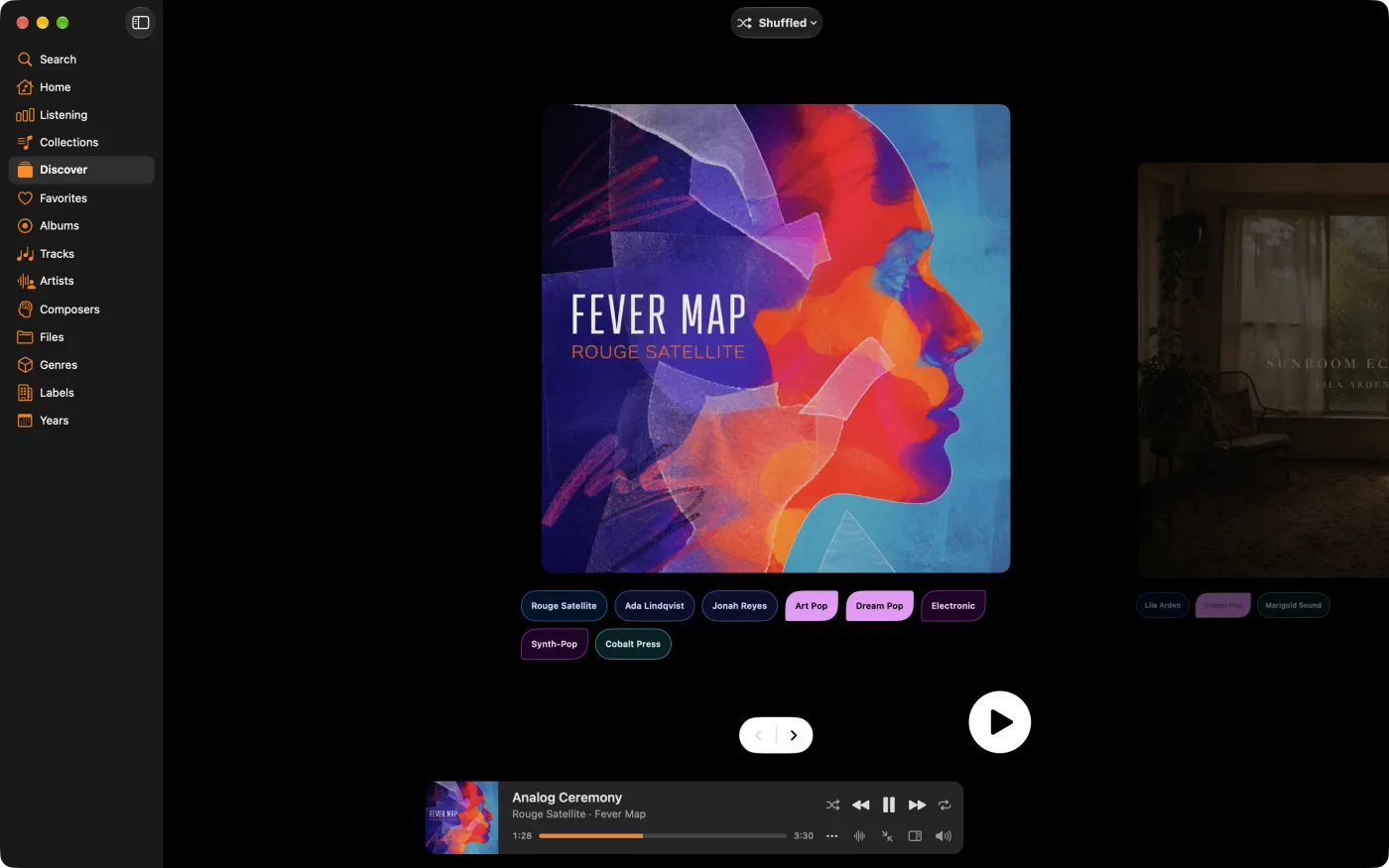
Discover deals out your library one album at a time, cover first. Use ← and → or the Previous and Next buttons to flip through, and Return to play the one in front of you. The Album Order menu chooses how they come: Shuffled, Newly Added, New Releases, or Lately Played.
Under each cover are its artist, composer, genre, and label. Click one to follow it, and every album after that shares it. Click again to let go. You can follow several at once. At the end of the list, Reshuffle starts again; if nothing matches what you are following, Clear Filters.
Tags
Turn on Tags in Settings › Sections to get every artist, composer, genre, and label on a single page. Type in Filter Tags to find one, and click it for its albums. Right-click a tag and choose Pin Tag to keep it at the front.
Album, artist, and label pages
The album page
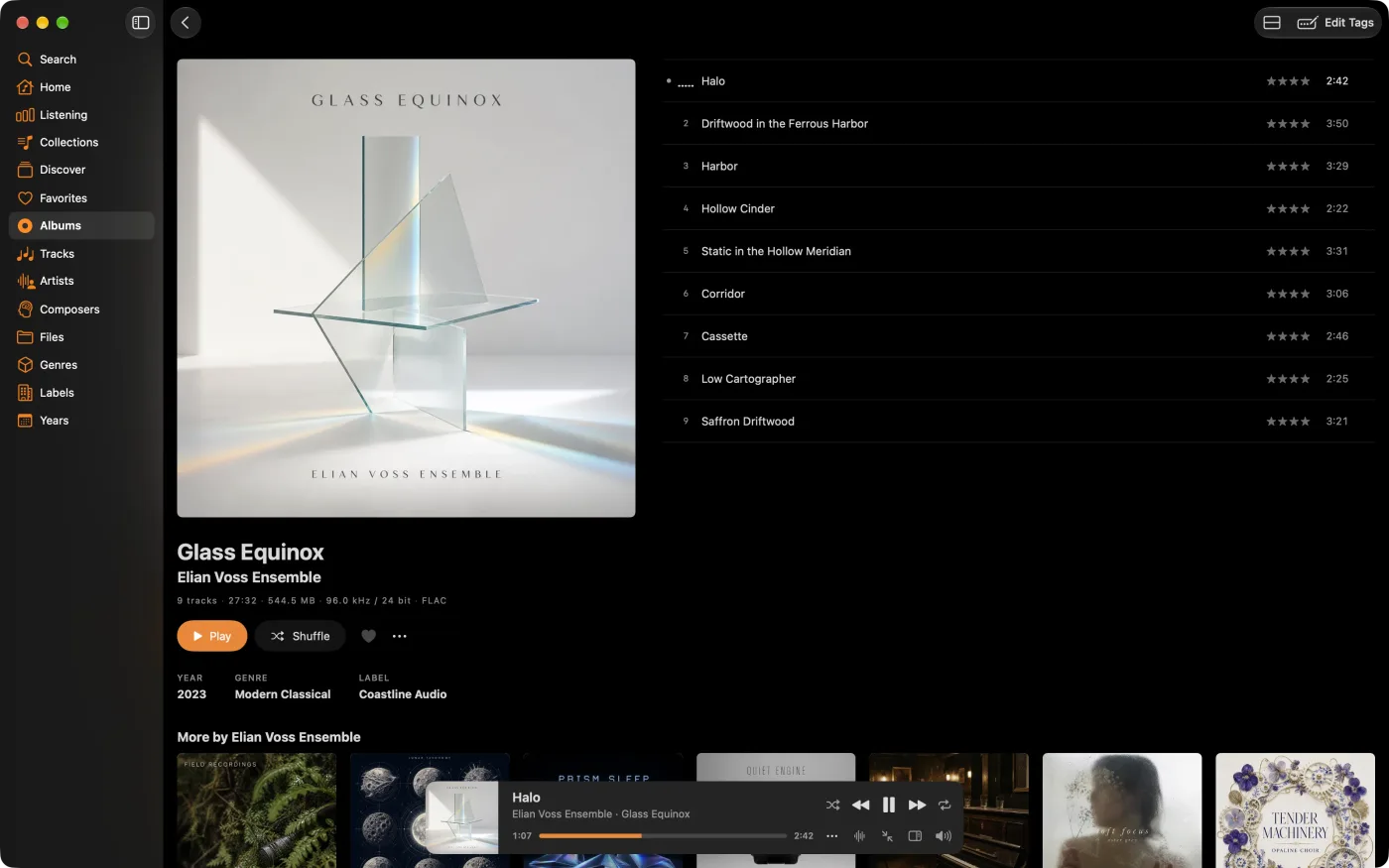
The cover and credits sit beside the track list. Click the cover to see it full size. Under the title, a single line sums up the record: number of tracks, running time, size, format, and sample rate and bit depth (or bit rate). Year, Genre, Composer, and Label are links to everything else you own that shares them.
- Play and Shuffle start the album. The heart favorites every track on it.
- Tracks are grouped by disc. Albums with Work tags, such as classical recordings, get a Group by work switch.
- Click a track to select it, Shift-click to extend the selection, Command-click to add or remove one, and double-click to play.
- The toolbar switches between Column Layout and Stacked Layout. The column layout needs a wide enough window.
- Edit Tags opens the tag editor for the selected tracks, or the whole album if none are selected.
At the bottom, More by the artist shows the rest of their albums in your library.
Artist and label pages
An artist page shows the artist's albums, how many tracks you have, and how often and how long you have listened to them. Write your own notes in the notes box and click Save. The photo starts out as one of the artist's covers; hover it and click the photo button to choose your own picture. Label pages work the same way. Notes and photos stay in MiniMoon and are not written to your files.
Playing music
Starting playback
Right-click any album or track, or click its … button, for the same set of actions:
- Play replaces the queue with your choice.
- Play Next slots it in after the current track.
- Play Last adds it to the end of the queue.
- Rating sets one to five stars. Choose the current rating again to clear it.
- Favorite or Unfavorite.
- Collections... adds it to a collection.
- Go to album, Go to artist, and Reveal in Finder.
Play Random Album (⌘⇧R) picks any album in your library and plays it from the top.
The player bar
The bar along the bottom shows what is playing. Click the cover to go to the album. Alongside the previous, play, and next buttons are Shuffle, Repeat (which cycles through off, repeat one, and repeat all), a position slider, volume, and buttons for the visualizer, the mini player, and the queue. Shuffle and repeat are remembered between sessions.
Press Space to play or pause from anywhere outside a text field. Previous restarts the current track if more than a few seconds have played; press it again to go back a track. Your Mac's media keys, Control Center, and the Dock icon's menu all control MiniMoon too.
The queue
The Queue tab in the inspector lists what is coming up. Drag tracks to reorder them, double-click one to jump to it, or Clear the lot. The queue and your place in it are still there next time you open MiniMoon.
Tracks of the same format play straight into one another, so live albums and records that segue stay unbroken.
Lyrics
The Lyrics tab shows the words to the current song. Synced lyrics from a .lrc file scroll along as it plays. If a song has none, click Fetch Lyrics to look them up in the free LRCLIB database; what it finds is saved next to the track for next time.
Related
The Related tab turns up albums connected to the one playing: More by the artist, More on the label, More from the same year, and Around the same time, the albums you tend to play alongside it.
Mini player
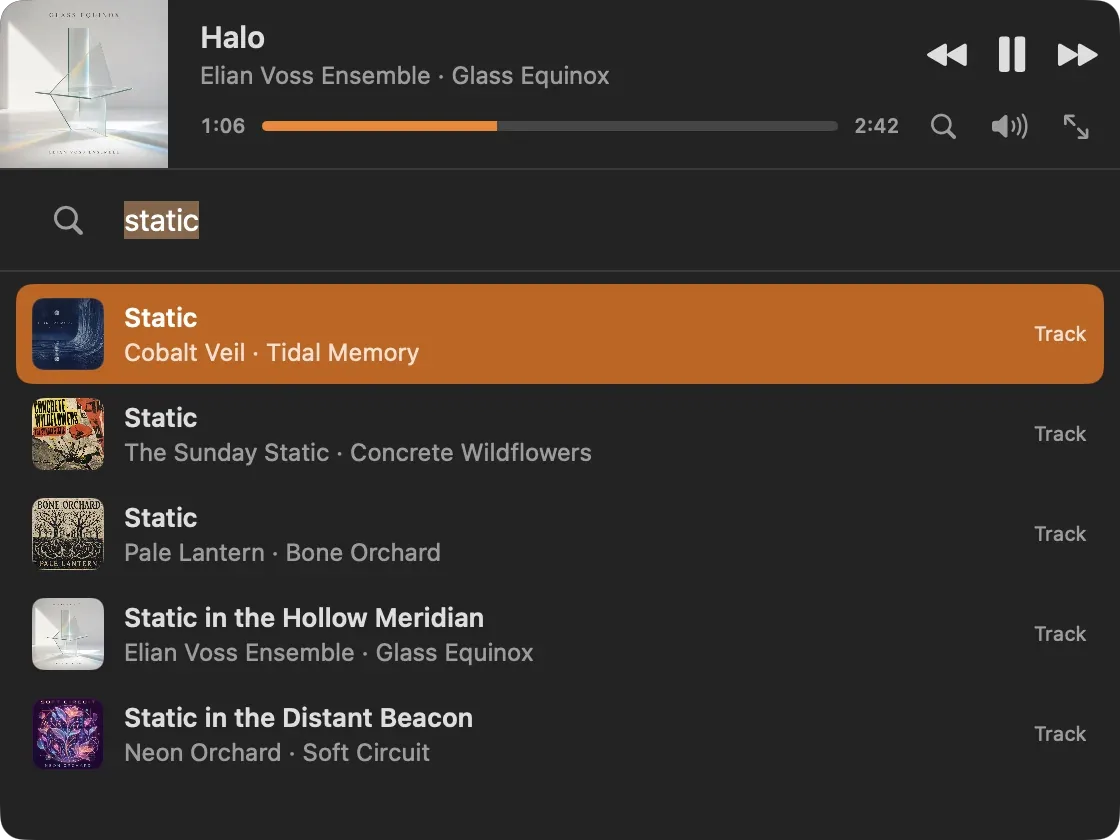
Enter Mini Player (⌘⇧M) shrinks MiniMoon to a small window with the cover, the controls, and volume. Drag it by the cover. To keep it above other windows, choose View › Keep Mini Player on Top.
Press ⌘F in the mini player to search without leaving it. It shows what you played recently until you type, then albums, collections, and tracks. Use ↑ and ↓ to choose, Return to play, and Esc to close.
Visualizer
Enter Visualizer (⌘⇧V) fills the window with graphics that move to the music. Move the mouse to bring up the controls, where you can switch between styles: Spectrum Bars, Radial Spectrum, Spectrum Terrain, Wire Tunnel, MilkDrop Flower, and Fluid. You can also go full screen. Esc exits.
Search
Press ⌘F or click Search at the top of the sidebar, and start typing. Results arrive as you type, grouped into albums, artists, composers, and tracks, with the most likely matches and your most played music first. Search ignores case and accents.
Use the scope buttons to search only Albums, Artists, Composers, or Tracks and see more results. Before you type, your Recent Searches are listed; remove one with Delete, or all of them with Clear All.
Collections
Collections are MiniMoon's playlists, and they work for whole albums as well as single tracks. Every collection can be shown as a track list or as a wall of covers; use the toolbar button to switch.
Making a collection
In Collections, click + and choose Collection. To add music, right-click any album or track and choose Collections..., then pick a collection or Create New Collection.
Inside a collection, click the title to rename it, and use the photo button to give it a cover of its own. Otherwise MiniMoon builds one from the covers inside. In the track view, drag to reorder and use Remove to take a track out. In the album view, click Edit to drag albums into order.
Smart collections
A smart collection fills itself from rules and keeps itself up to date. Click + › Smart Collection, then Edit Rules. Choose whether tracks must match All, Any, or None of the rules, then Add Rule for each condition. You can also sort the results and limit how many there are, for example the 50 most played tracks of the last month. A live count shows how many tracks match as you work.
| Type | Fields | Conditions |
|---|---|---|
| Text | Album, Album Artist, Artist, Comment, Composer, File Path, Format, Genre, Label, Lyrics, Movement, Performer, Title, Work | is, is not, contains, does not contain, starts with, ends with, is empty, is not empty |
| Numbers | Bit Depth, Bitrate, Disc Number, Duration (seconds), Movement Number, Play Count, Rating (0 to 5), Sample Rate, Size, Track Number, Year | is, is not, is greater than, is at least, is less than, is at most, is between |
| Dates | Date Added, Date Favorited, Date Modified, Last Played | is before, is after, is in the last … days, weeks, or months |
| Flags | Is Compilation, Is Favorite | is, is not |
Importing and exporting playlists
+ › Import M3U Playlist... turns an M3U playlist into a collection, matching each entry to a track already in your library by its path or file name. MiniMoon tells you if any could not be found. Export M3U saves a regular collection as an M3U file for use elsewhere.
Editing tags
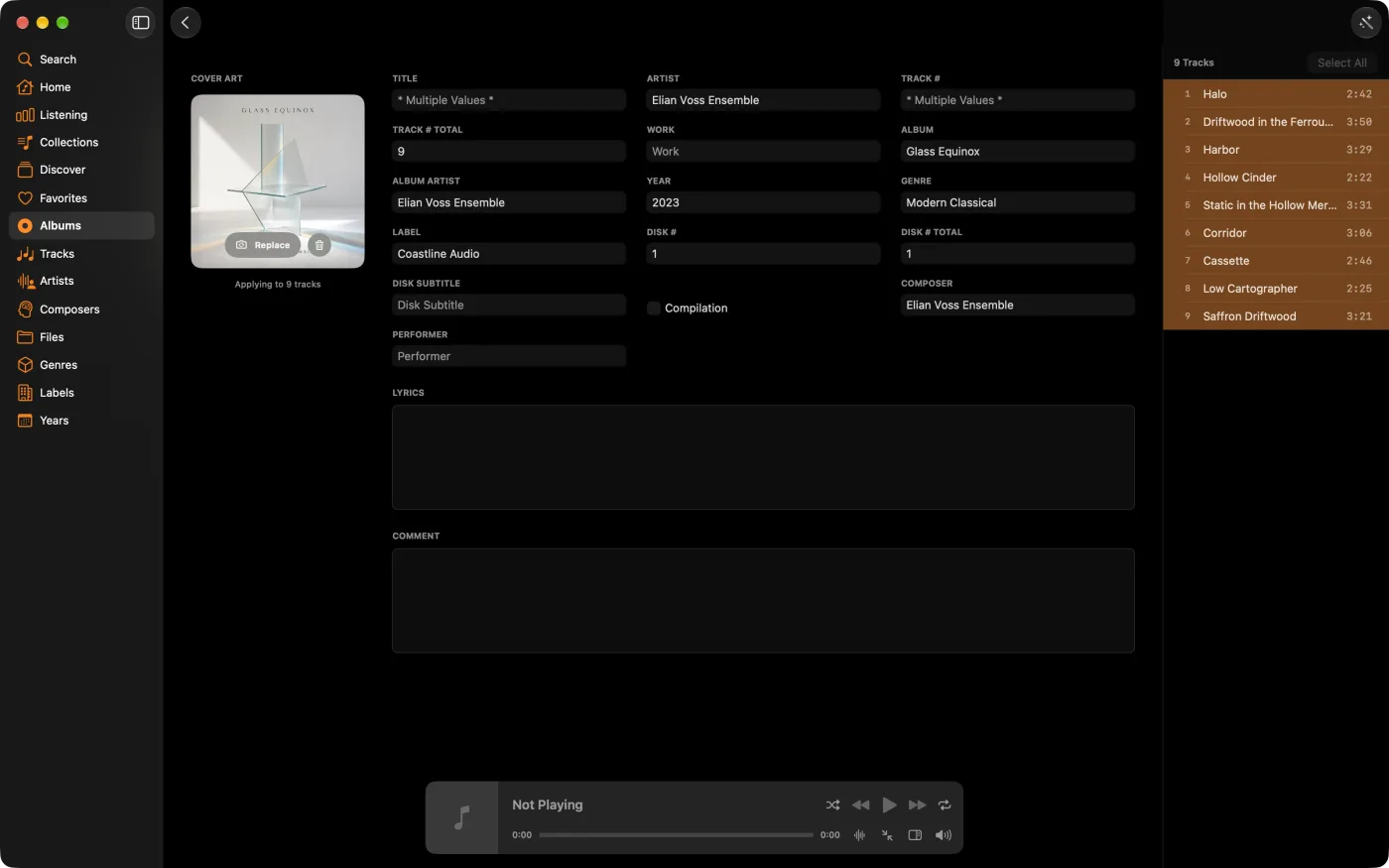
Open an album and click Edit Tags. The editor opens on the tracks you selected, or the whole album. Pick tracks in the list on the left: ↑ and ↓ move through them, Shift extends the selection, Space toggles a track, and Select All takes the lot.
Whatever you type applies to every selected track. Where they disagree, a field reads * Multiple Values *, and leaving it alone keeps each track's own value. Text fields suggest values already in your library as you type.
The fields are Title, Artist, Track # and its total, Work, Album, Album Artist, Year, Genre, Label, Disk # and its total, Disk Subtitle, Compilation, Composer, Performer, Lyrics, and Comment.
- Cover art: click Add or Replace to choose an image, or the trash button to remove it. Art is embedded in the audio files.
- Guess Work suggests Work tags for classical recordings from the track titles, and shows you the result before applying it.
- Saving is automatic. A few seconds after you stop typing, the changes are written to the files. The status bar shows progress and reads Tags saved when done.
Sound
Both of these live in Settings › Audio.
ReplayGain
Turn on Enable ReplayGain to have MiniMoon use the ReplayGain tags in your files, so tracks mastered decades apart play at a similar loudness. MiniMoon uses track gain. Files without ReplayGain tags play as they are.
Equalizer
The equalizer has ten bands from 31 Hz to 16 kHz, each adjustable by 12 dB either way. Switch Master EQ between Active and Bypassed to compare, and use Reset All Bands to flatten it.
Pick a starting point from Presets: Flat, Rock, Pop, Jazz, Classical, Electronic, Hip-Hop, Acoustic, Vocal, Bass Boost, or Treble Boost. To keep your own settings, click Save New under My Presets and name them. Update Selected saves changes to a preset of yours, and right-clicking one lets you delete it.
Listening stats and Last.fm
Listening
The Listening section adds up everything you have played in MiniMoon: total plays and listening time, plus your Top Artists, Top Albums, Top Labels, Top Years, and Top Genres. Switch Rank By between Plays and Time, and click a heading for the full list. Stats are kept on your device and are separate on each one.
Last.fm scrobbling
In Settings › Integrations, click Connect to Last.fm. Your browser opens on Last.fm's own site; approve MiniMoon there and come back. MiniMoon never sees your password.
A track is scrobbled once you have played half of it or four minutes, whichever comes first. Tracks shorter than 30 seconds are not scrobbled. If you are offline, scrobbles wait and are sent later. Click Sign Out to stop.
Settings
Open Settings from the MiniMoon menu or with ⌘,.
- Library: your music folders, library stats, and the scan buttons. See Getting started.
- Tags: Enable Tag Splitting splits fields holding several values into separate artists, genres, and so on. Split Characters sets which characters divide them.
- Integrations: Last.fm.
- Sections: the order and visibility of the sidebar sections.
- Appearance: System, Light, or Dark.
- Audio: ReplayGain and the equalizer.
- Updates: Check for Updates, and whether MiniMoon checks automatically in the background.
- License: your trial or license. See Trial and license.
Keyboard shortcuts
Control menu
| Command | Shortcut |
|---|---|
| Play / Pause | Space |
| Stop | ⌘. |
| Next Track | ⌘→ |
| Previous Track | ⌘← |
| Go to Current Song | ⌘L |
| Play Random Album | ⌘⇧R |
| Increase Volume | ⌘↑ |
| Decrease Volume | ⌘↓ |
| Shuffle | ⌘⌥S |
| Repeat | ⌘⌥R |
| Back | ⌘[ |
Windows and sections
| Command | Shortcut |
|---|---|
| Search | ⌘F |
| Show Queue / Hide Queue | ⌘\ |
| Enter Visualizer / Exit Visualizer | ⌘⇧V |
| Enter Mini Player / Exit Mini Player | ⌘⇧M |
| First nine sidebar sections | ⌘1 … 9 |
| Tenth sidebar section | ⌘0 |
| Settings | ⌘, |
The numbered shortcuts follow the sidebar. In the default order, ⌘1 is Home and ⌘6 is Albums; reorder or hide sections and the numbers move with them.
Elsewhere
| Where | Action | Keys |
|---|---|---|
| Discover | Browse albums | ← → |
| Discover | Play the album shown | Return |
| Mini player search | Move through results, play, close | ↑ ↓ Return Esc |
| Visualizer | Exit | Esc |
| Tag editor track list | Move (hold Shift to extend) | ↑ ↓ |
| Tag editor track list | Toggle a track / select a range | Space ⇧Space |
| Album track list | Extend / toggle the selection | ⇧click ⌘click |
Trial and license
MiniMoon for Mac is free for two weeks, with every feature working. Settings › License shows how many days of the trial are left. To keep using it, buy a license with Buy Now, paste the key you are sent into License Key, and click Activate License. Activation needs an internet connection.
When the trial ends without a license, a Trial Expired badge appears in the toolbar and MiniMoon will not start new music until you activate one. Your library, collections, and settings are all kept.
Moving to a new Mac? Click Deactivate License on the old one, then enter the same key on the new one.
iPhone and iPad
MiniMoon on iPhone and iPad has the same library, album pages, collections, smart collections, Discover, search, lyrics, and stats as the Mac. This section covers what is different.
Getting music onto your device
There are two ways:
- MiniMoon Sync copies your library from a Mac or Windows PC over your home network. This is the easy way to bring a large library across and keep it current. See MiniMoon Sync.
- The Files app. MiniMoon's folder appears in Files under On My iPhone (or On My iPad) › MiniMoon, and in Finder when your device is connected to a Mac. Copy music in, then open the Library section and tap Scan Library.
Finding your way around
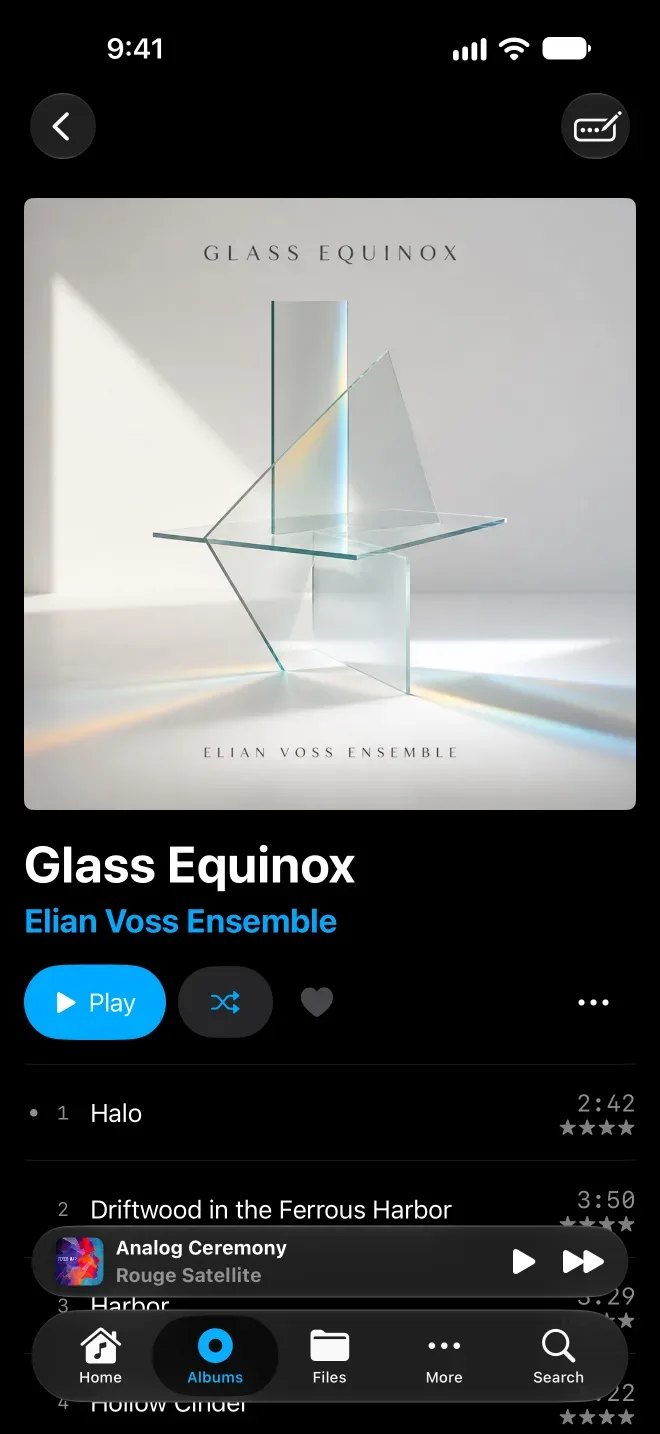
On iPhone, the tab bar holds Home, Albums, Collections, Search, and More. Everything else, including Sync, Library, Audio, Shop, and Settings, is under More. Tap Edit Sections there to choose which sections get a tab and in what order. The first three you list become tabs. On iPad, every section is in the sidebar, and Customize rearranges it.
Touch and hold an album, track, or tag for the same actions you get by right-clicking on the Mac. Swipe left to delete collections, recent searches, queued tracks, and tracks in a collection.
Now playing
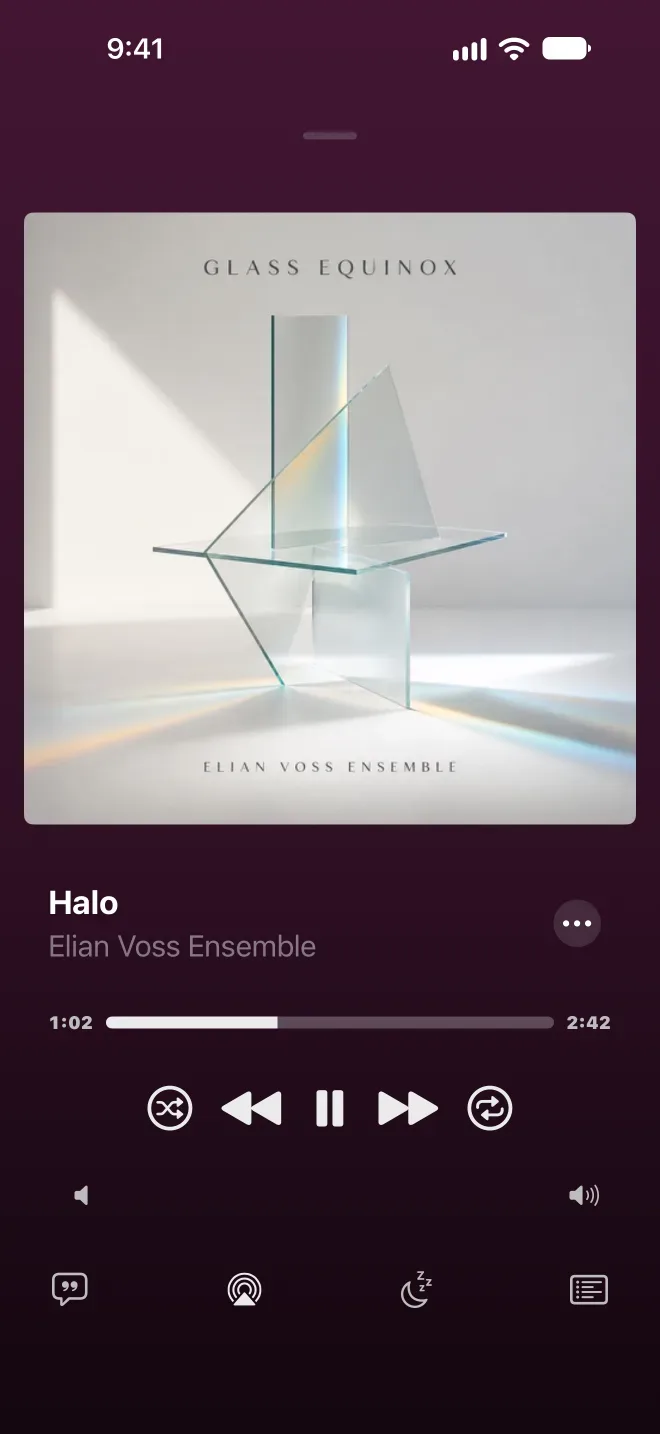
The mini player sits above the tab bar. Swipe across it to skip tracks, and tap it to open the full-screen player. There, swipe the cover to change tracks, tap the title to go to the album or artist, and swipe down to close. Along the bottom are buttons for lyrics, AirPlay, the sleep timer, and the queue (Up Next), where you can drag tracks into order and swipe to remove them.
The sleep timer stops playback after 5, 10, 15, 30, 45, or 60 minutes, or at the End of Track. Music keeps playing in the background and can be controlled from the Lock Screen and Control Center.
Free and full versions
MiniMoon is free to download, and the free version browses and plays your whole library with no limits on how much music you have. A one-time purchase in the Shop section unlocks the rest:
| Feature | What it covers |
|---|---|
| Equalizer | The Audio section: the 10-band equalizer and ReplayGain. |
| File Browser | The Files section, for browsing your music by folder. |
| Track Browser | The Tracks section, a sortable list of every song. |
| Tag & Art Editor | Edit Tags, including cover art. |
| Interface Customization | Customizing the shelves on Home. |
| Follow Several Tags | Following more than one tag at a time in Discover. |
| Pin Favorite Tags | Pinning tags to the front of the Tags page. |
| App icons | The Note and Disc alternate app icons. |
Locked features show a Go To Shop button. If you have bought the full version before, on this device or another with the same Apple Account, tap Restore Purchases. Once you have the full version, the Shop also has an optional tip jar.
Settings on iPhone and iPad
- Last.fm, Tag Splitting, and Theme work as on the Mac.
- App Icon chooses between Default, Note, and Disc.
- Disable Tab Bar Auto-Minimize keeps the tab bar full size while you scroll.
- Disable Player Carousel Swiping stops swipes on the cover in the full-screen player from changing tracks.
The equalizer and ReplayGain are in their own Audio section, and scanning is in Library. In the tag editor, cover art is chosen from the Files app.
MiniMoon Sync
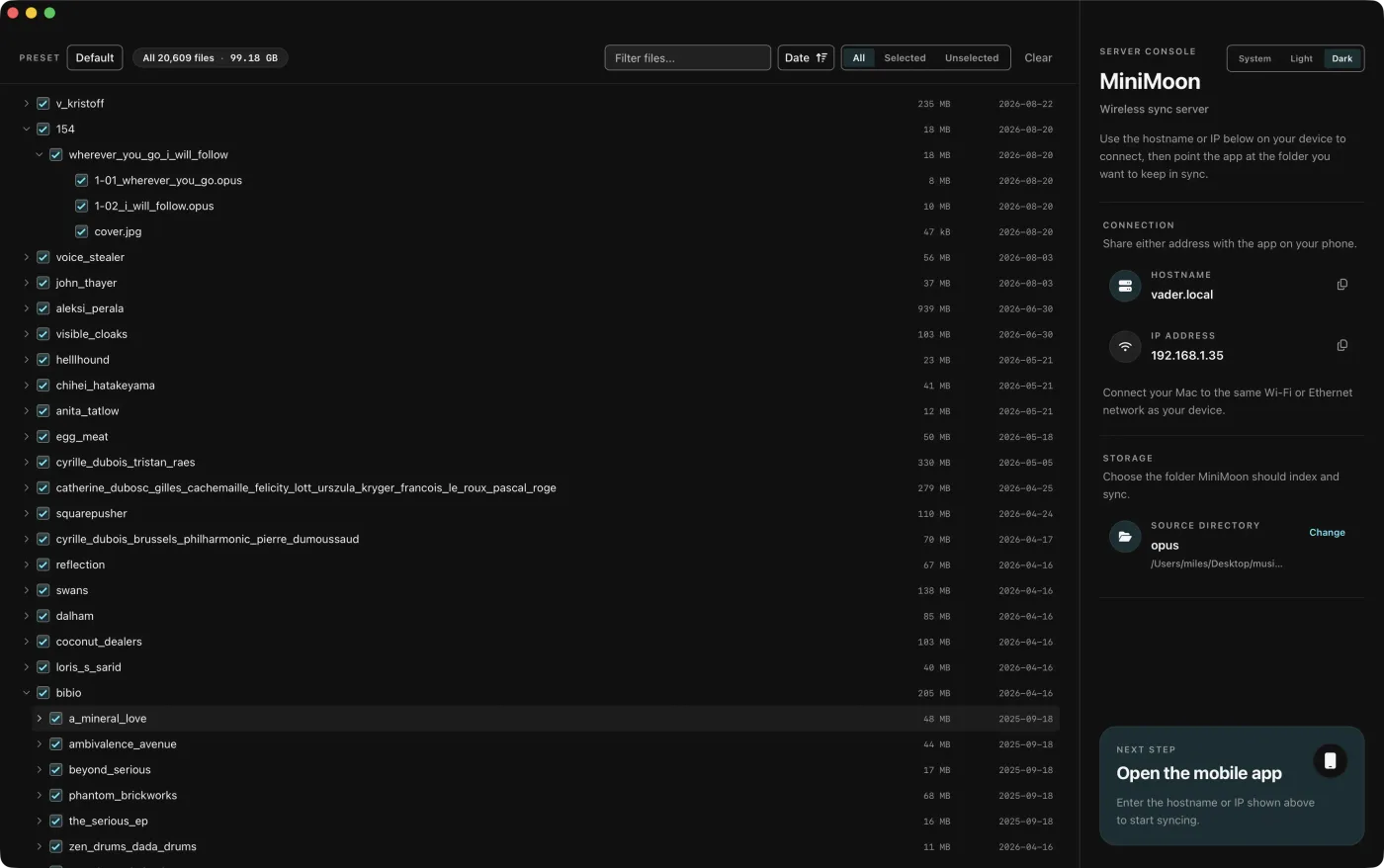
MiniMoon Sync is a free companion app for Mac and Windows. It shares one music folder on your computer, and MiniMoon on your iPhone or iPad copies it across your home network. There is no cable, and nothing goes through the internet.
Setting it up
- Download MiniMoon Sync for Mac or Windows, install it, and open it.
- Click Select a source folder and choose your music folder.
- Optionally, untick folders you do not want on your phone. Save a selection you want to reuse as a Preset.
- Note the Hostname or IP Address it shows. Copy puts it on the clipboard.
- On your iPhone or iPad, open MiniMoon and go to Sync (under More on iPhone). Type the hostname or IP address into the Host field.
- Tap Prepare. MiniMoon compares the two libraries and shows how many files it will add, update, and delete.
- Tap Start Sync. When it finishes, the library is rescanned automatically.
Keep the computer and the device on the same Wi-Fi or Ethernet network, and keep MiniMoon open while it syncs. If you leave the app, the sync pauses and picks up where it left off next time. The first time, iOS asks to let MiniMoon find devices on your local network; allow it, or sync cannot connect. If you said no, change it in the iOS Settings app under MiniMoon.
What gets synced
Sync copies files: music, cover images, and .lrc lyrics files, and with them the tags and artwork stored inside. Supported music formats are MP3, AAC and ALAC (.m4a), FLAC, Opus, and WAV. AIFF files are not synced; convert them, or copy them in with the Files app.
Ratings, favorites, play counts, collections, and settings are not files, so they are not synced. Each device keeps its own.
Sync makes your device match your computer. Any music, image, or lyrics file in MiniMoon on your device that is not in the shared folder is deleted, including music you added with the Files app and lyrics you fetched on the device. Tags or artwork you edit on the device are replaced by the computer's copy the next time you sync, so make lasting edits on the computer. If a sync would delete more than 100 files, MiniMoon asks first.
While MiniMoon Sync is running, any device on the same network can read the shared folder. Use it on networks you trust, and quit it when you are done.
Getting help
Questions, bug reports, and suggestions are welcome at info@plastaq.com. See what changed in each Mac release in the release notes, and how MiniMoon handles your data in the privacy policy.